
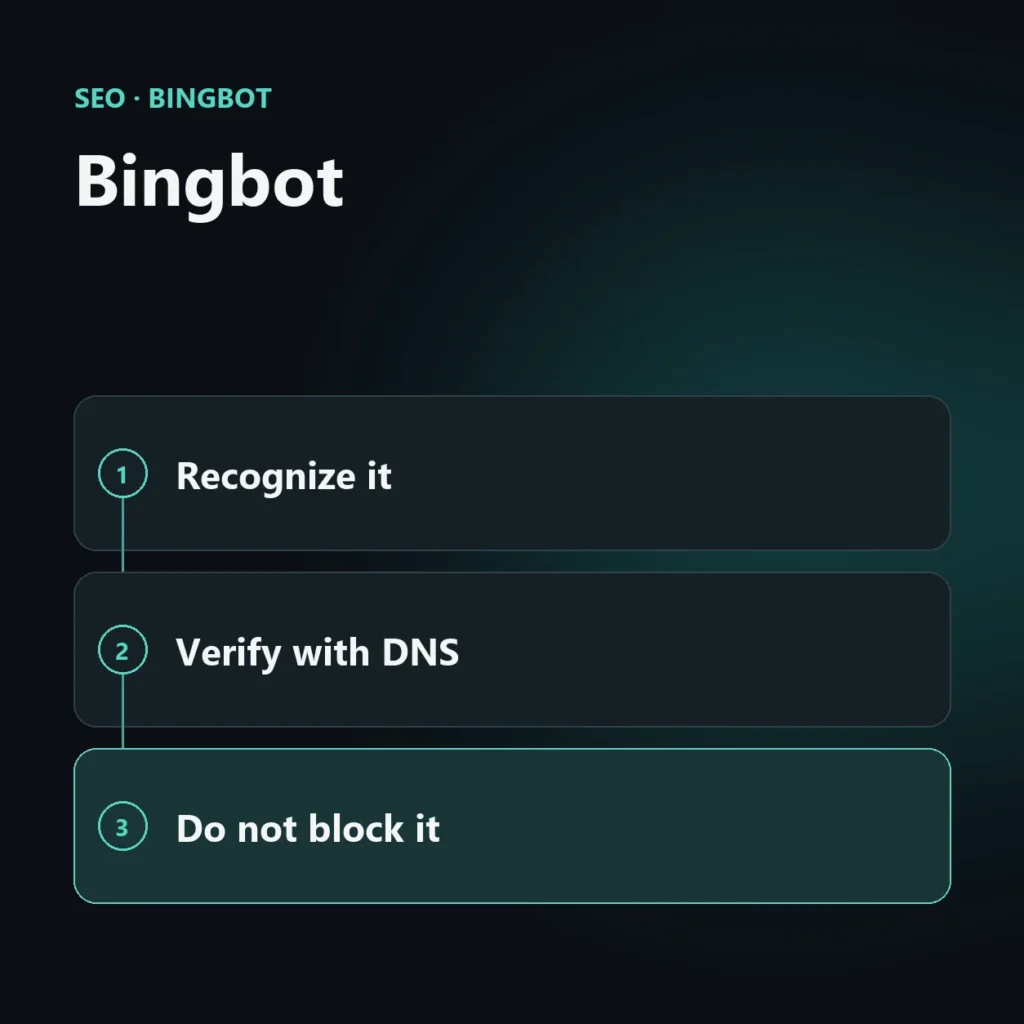
Bingbot is Microsoft Bing’s crawler: the program that visits a site’s pages to discover them and keep them up to date in the index. Recognizing it serves two opposite purposes: not blocking it by mistake, and not letting in whoever pretends to be Bingbot.
This guide explains how to verify that a visit is genuine, which errors to check and how to keep a firewall or security plugin from dropping the site from the index. It is part of the series on Bing SEO.
How Bingbot identifies itself
In server logs it appears as a user agent containing the word bingbot. The problem is that this string can be written by any program: anyone can pass for Bingbot. So the user agent alone proves nothing.
How to verify it is really Microsoft
The method Bing indicates uses DNS in two steps:
- Reverse DNS. Start from the IP address that made the request and look up the associated name. For a real Bingbot the name ends in
search.msn.com. - Forward DNS. Look up the address of the name you found: it must return the same starting IP.
If both steps match, the request is genuine. If the name does not end in search.msn.com, or the IP does not match, it is someone else.
On a system with a command line you can do it like this (replace the IP with the one from your log):
host 40.77.167.0
host name-found.search.msn.com
Why IP lists are not a good idea
Bing does not publish a list of IP addresses and, in a 2012 article, advises against basing permissions on fixed lists, because addresses change. DNS verification is the reliable approach. If your firewall or security service works with lists, check that it updates them by itself.
Blocking it by mistake: typical cases
- Firewall or CDN rules that treat crawlers as hostile bots.
- Security plugins that rate-limit requests and answer with a 403 or 429 error.
- A robots.txt file with a block that is too broad, for example a rule aimed at all crawlers written for another reason.
- Anti-bot protections that show a challenge instead of the page.
The symptom is always the same: pages Bing cannot read, which stay out of the index or drop out of it (see the guide to pages not indexed on Bing).
Where to see the errors
In Bing Webmaster Tools, in the crawl information section (Reports & Data), you can see the errors Bingbot met, including 403s. Check it regularly: a sudden spike in errors often coincides with a change to a firewall, plugin or hosting. If you have not set the tool up yet, start from the guide to Bing Webmaster Tools.
How to control it without shutting it out
- To regulate what it can visit, use robots.txt with specific rules, not general blocks.
- For pages you do not want indexed, use the noindex directive, which is different from a crawl block.
- If your server struggles under crawler load, act on the server or on the tool’s settings, not by blocking the crawler. Crawl-rate controls exist, but check the official documentation for details when you use them.
Frequently asked questions about Bingbot
How do I know a visit is really from Bingbot?
With reverse DNS: the name associated with the IP must end in search.msn.com, and forward DNS of that name must return the same IP.
Can I allow Bingbot with an IP list?
Bing does not publish a list and advises against fixed lists, because addresses change. Verify through DNS instead.
Where do I see whether Bingbot gets 403 errors?
In Bing Webmaster Tools, in the crawl information under Reports & Data.
Does noindex block Bingbot?
No. Noindex asks not to index the page, but Bingbot must be able to read the page to see it. Do not combine it with a crawl block.
Can Bing read your site?
I check robots.txt, firewall, security plugins and crawl errors, and tell you whether something stops engines from reading the pages that matter.
SEO, GEO and AEO specialist
Related articles
 SEOContent Gap Analysis: What Competitors Write and You Don’tOctober 30, 2026
 SEOBacklink Gap: Analyzing Competitor LinksOctober 30, 2026
 SEOHow to Find Your Real SEO CompetitorsOctober 30, 2026
Explore by topic